
June 2026 Zoho CRM Updates: What Actually Matters
Zoho CRM gets updated often, and not every release needs your immediate attention. Some updates are nice to have. Some are small usability improvements. Others quietly solve problems that CRM admins, sales leaders, and operations teams deal with every day.
The June 2026 Zoho CRM updates fall into that last category.
This month’s announcements include several useful improvements across security, layout customization, sales follow-up, reporting, and webform compliance. But two updates stand out: Field Masking and expanded Layout Rules.
Both are especially important because they address two of the most common CRM problems businesses face: protecting sensitive data and making the system easier for users to work in.
It is important to note that Field Masking and the new Layout Rules enhancements are currently available for Zoho partner accounts and are expected to be released to customers through early access soon. If you do not see these options in your CRM yet, that is expected.
Here is what changed, why it matters, and how businesses should think about using each update.
1. Field Masking: A Better Way to Protect Sensitive CRM Data
Field Masking is one of the most important Zoho CRM updates announced this month.
Most CRM systems contain sensitive customer information. That may include phone numbers, email addresses, identification numbers, policy numbers, financial details, or other data that should not be visible to every user. The challenge is that many teams still need access to the customer record itself. They just do not need access to every field on that record.
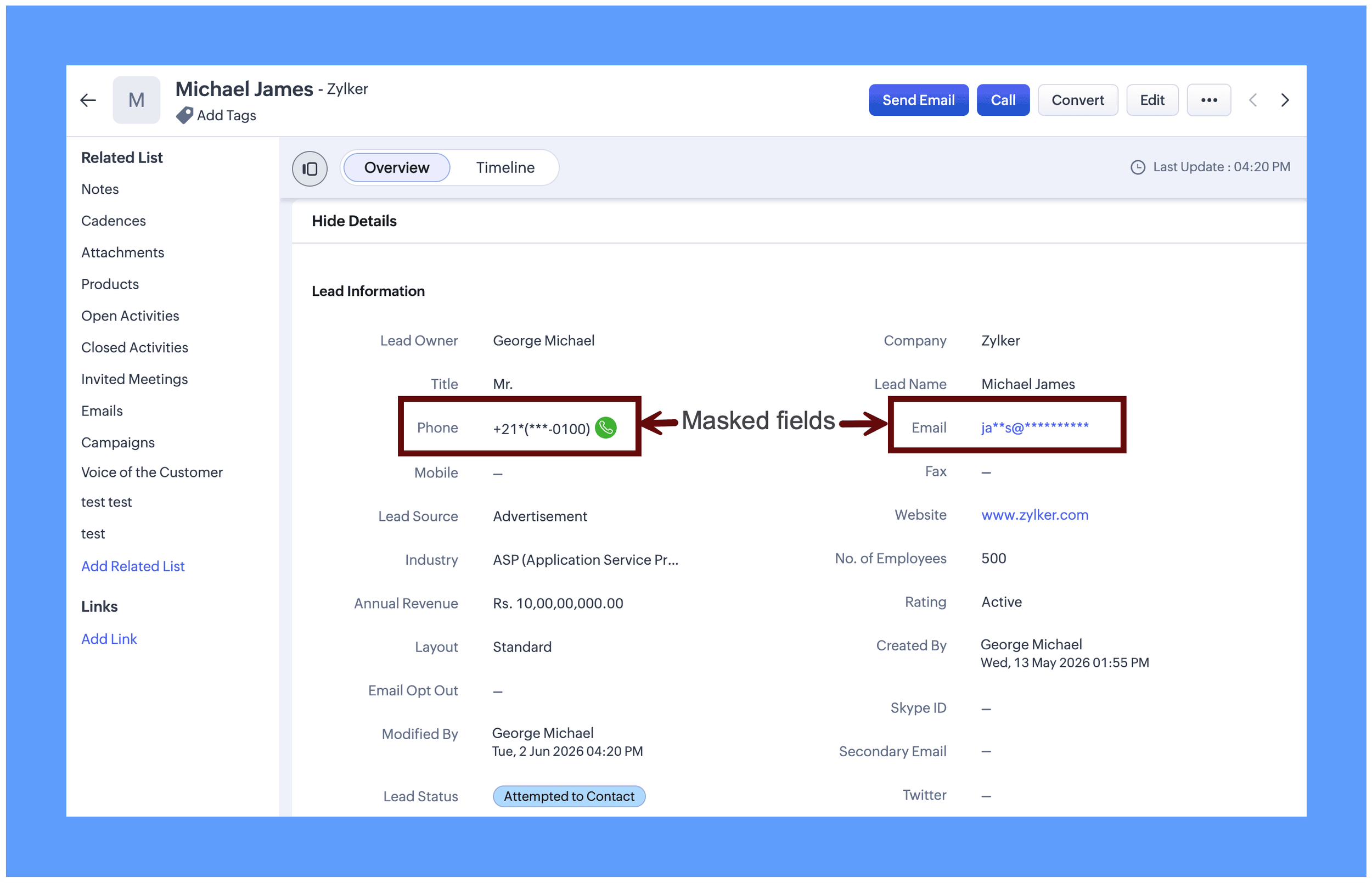
Field Masking gives CRM admins a more practical way to manage that balance.
Instead of hiding an entire record or relying only on broad permission settings, admins can mask specific field values. A masked phone number, for example, may appear as asterisks or only show the first and last few digits. Authorized users can still reveal the full value if they have permission, while other users only see the masked version.
This is useful because data access is rarely all-or-nothing. A sales manager may need to see a full mobile number. A support rep may only need to verify the last few digits. A non-sales team may need to reference the customer record but should not see personal contact information at all.
Real-world scenario
Imagine your CRM is used by sales, support, finance, and operations.
Your sales team needs access to customer phone numbers so they can follow up with prospects and clients. Your support team may need enough information to verify a caller, but they do not necessarily need full visibility into every phone number or personal identifier. Your finance team may need account and invoice details but not personal contact data.
Without Field Masking, many companies either expose too much information or create complicated workarounds with profiles, layouts, and custom views.
With Field Masking, you can protect the field itself.
For example, a mobile number could display as:
9******8621
The support rep can verify the customer without seeing the full number. A manager or authorized sales user can click the eye icon to reveal the complete value if their profile has access.
That is a much cleaner and safer way to manage sensitive data.
Why this matters
This update is not just about privacy. It is about operational control.
As CRMs become more connected to other systems, sensitive data does not only live on the record screen. It may also appear in exports, reports, templates, integrations, API responses, and shared views. That is where Field Masking becomes especially valuable.
Zoho gives admins control over what happens when masked data leaves CRM. Depending on the situation, masked fields can be shared as-is, shared based on the user’s masking permission, restricted entirely, or shared in masked format.
That is a major improvement.
The biggest mistake companies will make is thinking only about what users can see inside CRM. The more important question is: what happens when that data leaves CRM?
If a user exports a report, should the masked phone number be exported in full? Should it remain masked? Should it be excluded entirely? If an integration pulls CRM data into another platform, should that system receive the original value or the masked value?
Those are the decisions that matter.
How to set up Field Masking
Field Masking is enabled in two stages.
First, the feature needs to be turned on at the CRM level. Once it is enabled, admins can configure how masked fields behave when data leaves CRM through exports, APIs, or integrations.
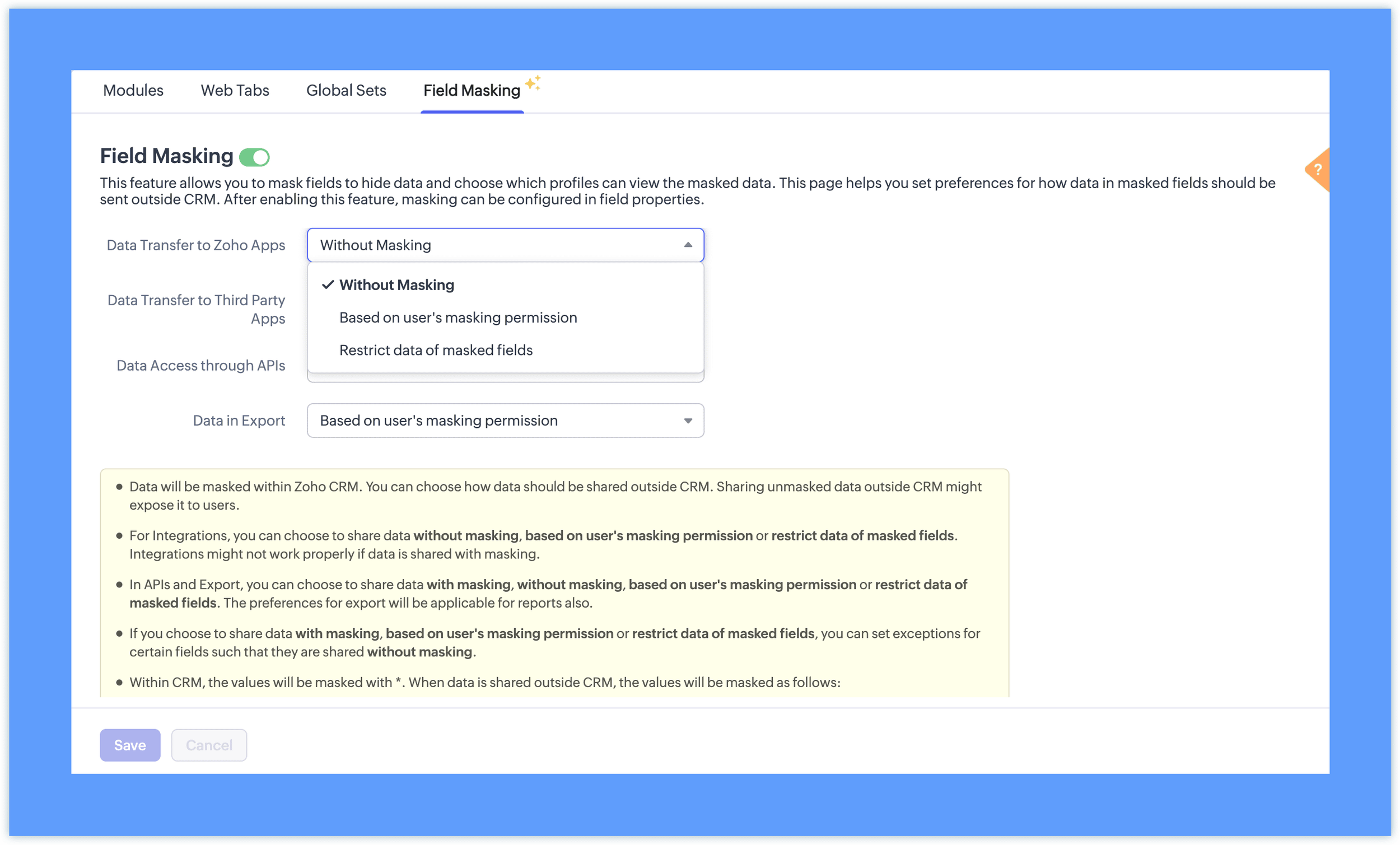
Second, admins choose which individual fields should be masked. This is done from the module layout by editing the properties of the field you want to protect.
Zoho currently supports two masking types:
Full Masking hides the entire value. This is useful for highly sensitive fields where most users should not see any portion of the data.
Custom Masking hides only part of the value. This is useful for fields like phone numbers or email addresses where users may need partial information for verification or identification.
Admins can also define which profiles are allowed to view the unmasked value. Users with permission will see an eye icon next to the masked field and can reveal the full value when needed.
Field Masking can be applied to several field types, including single line, email, phone, date, date/time, number, currency, decimal, long integer, and URL fields. Custom Masking is currently supported for single line, email, and phone fields.
What to think through before enabling it
Before enabling Field Masking, take time to identify which fields actually need protection.
Do not mask fields just because you can. Masking should be intentional. Start with the fields that create real privacy, compliance, or internal access concerns.
A good place to start is with questions like:
Which fields contain sensitive customer information?
Which teams need full access?
Which teams only need partial access?
Should this data appear in reports?
Should this data be allowed in exports?
Should connected systems receive the full value?
Field Masking can improve security, but it can also create confusion if it is rolled out without a plan. Users need to understand why certain values are masked and who can reveal them.
Also, be aware of the current limitations. Zoho has noted that masking is not yet fully supported in some areas, including certain email views, signal notifications, Zia features, and the mobile app. If your team relies heavily on those areas, you will want to test carefully before building a process around masked data.
This is one of those updates where setup matters. Used well, Field Masking can reduce unnecessary data exposure without slowing down the team. Used carelessly, it can create gaps in visibility or confusion about who can see what.
2. Layout Rules Just Became Much More Powerful
The second major update this month is the expansion of Layout Rules.
Layout Rules already allow Zoho CRM admins to dynamically change what users see on a record based on certain conditions. For example, you can show or hide fields, sections, and subforms, or make fields mandatory when certain criteria are met.
That has always been useful.
But the new enhancements make Layout Rules much more powerful.
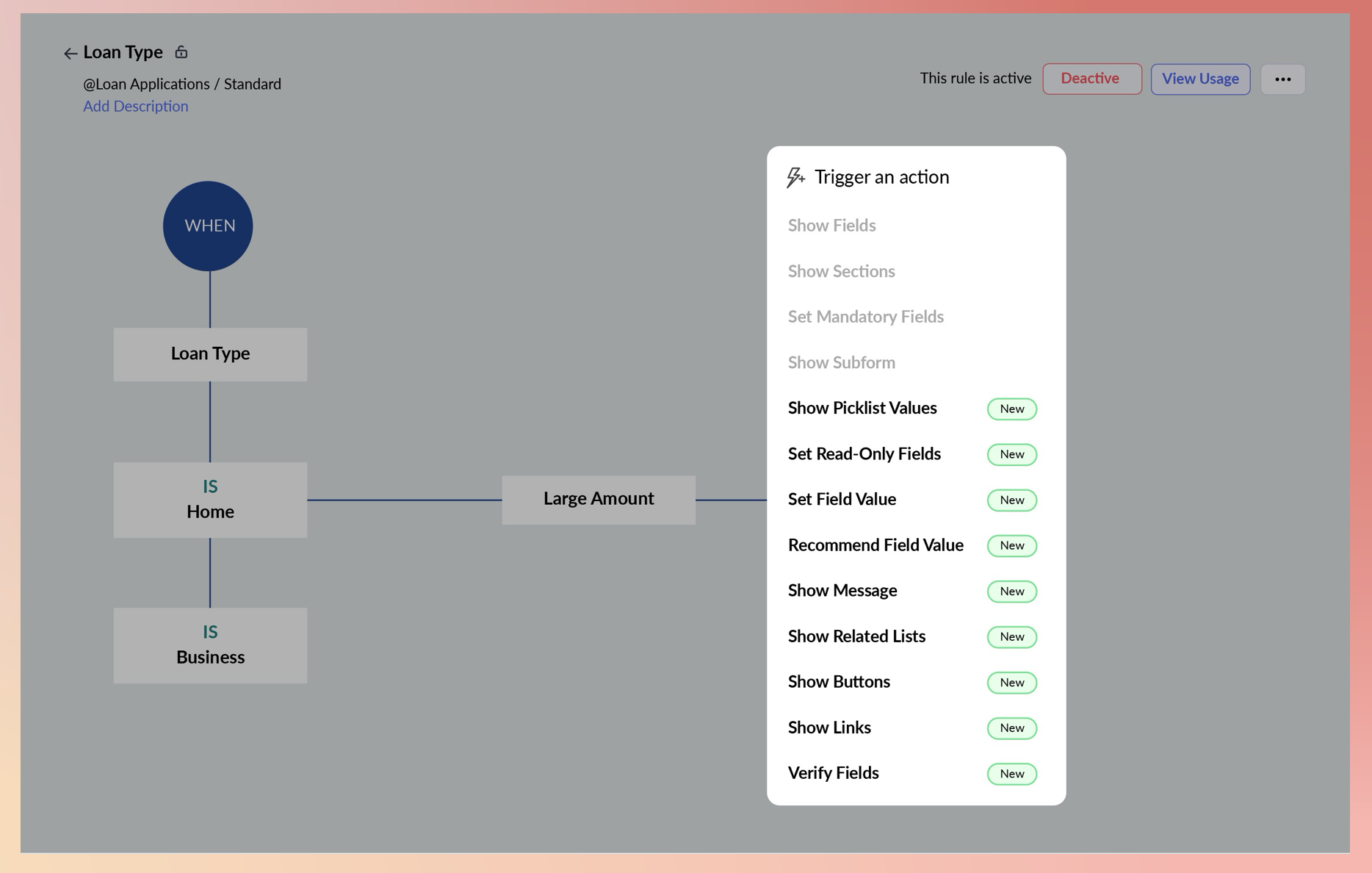
Zoho has added NINE new actions, including the ability to
Show picklist values
Set fields as read-only
Automatically set field values
Recommend field values
Show contextual messages
Show related lists
Show buttons
Show links
Verify fields
That means Layout Rules are no longer just about hiding or showing information. They are becoming a more complete tool for shaping the user experience inside CRM.
As with Field Masking, this enhanced Layout Rules functionality is currently available for Zoho partner accounts and is expected to be released to customers through early access soon.
Why this matters
A CRM should not feel the same for every user in every situation.
A sales rep working a new lead does not need the same experience as a manager reviewing a late-stage deal. A support user looking at an account does not need the same buttons, fields, or related lists as an operations user. A record in the early stages of a process should not ask for the same information as a record near completion.
That is where Layout Rules can make CRM feel more intuitive.
Instead of overwhelming users with every possible field, button, and related list, you can guide them based on context.
This matters because CRM adoption is often hurt by clutter. When users see too many fields, irrelevant sections, unclear buttons, or information that does not apply to their role, the system feels harder to use than it should.
Better Layout Rules can reduce that friction.
Real-world scenario
Imagine your sales team is working deals in Zoho CRM.
When a deal is in the early qualification stage, the rep may only need basic discovery fields, qualification notes, and next-step information. But once that deal moves to Proposal, the CRM needs different information. The rep may need to complete proposal fields, confirm decision-maker details, attach documentation, and follow a specific approval process.
With the expanded Layout Rules, you could create a more guided experience.
When the deal reaches Proposal, Zoho CRM could automatically show proposal-related fields, display a message reminding the rep what must be completed, show a relevant button for generating a quote or sending a proposal, and make certain fields read-only so key information does not get changed accidentally.
You could also recommend field values or set certain values automatically based on the record’s context.
That creates a cleaner experience for users and gives admins more control over data quality.
Profile-based execution is a big deal
One of the most useful parts of this update is profile-based execution.
This means Layout Rule actions can now apply differently depending on the user’s profile.
For example, a field could become read-only for sales reps once a deal reaches a certain stage, while still allowing managers to edit it. Or a related list could be visible to operations users but hidden from standard sales users. Or a button could appear only for users with the right profile.
This solves a common CRM challenge: different teams need different levels of control, but they are often working from the same records.
Without profile-based logic, admins sometimes have to create separate layouts, complicated permissions, or manual processes to manage these differences. With profile-based Layout Rules, the same record can behave differently for different users.
That is much more practical.
Interactive Preview will save admins time
Zoho also added an Interactive Preview for Layout Rules.
This lets admins preview how a Layout Rule will behave for different profiles before users are affected. You can select a profile and condition from the configuration page and see how the layout changes.
That may sound like a small usability improvement, but it matters.
Layout Rules can get complicated quickly. When multiple rules affect fields, sections, subforms, and buttons, it can be hard to know exactly what a user will see. The preview gives admins a safer way to test the experience before rolling it out.
This should reduce mistakes, troubleshooting, and user confusion.
What most companies should do with this update
The biggest opportunity with expanded Layout Rules is not to build more complicated layouts.
It is to simplify the CRM experience.
Use these enhancements to remove friction. Show users what they need when they need it. Hide what does not apply. Lock fields that should not be changed. Surface the right buttons and related lists at the right point in the process.
A good Layout Rule should make the CRM easier to use, not harder to understand.
Before building new rules, review the areas where users currently get stuck. Are they missing required fields? Are they entering inconsistent values? Are they clicking the wrong buttons? Are they asking where to find related information? Are managers cleaning up data after the fact?
Those are the places where Layout Rules can help.
3. Related Lists Finally Got an Upgrade
Sometimes the most valuable CRM improvements aren't the flashy ones.
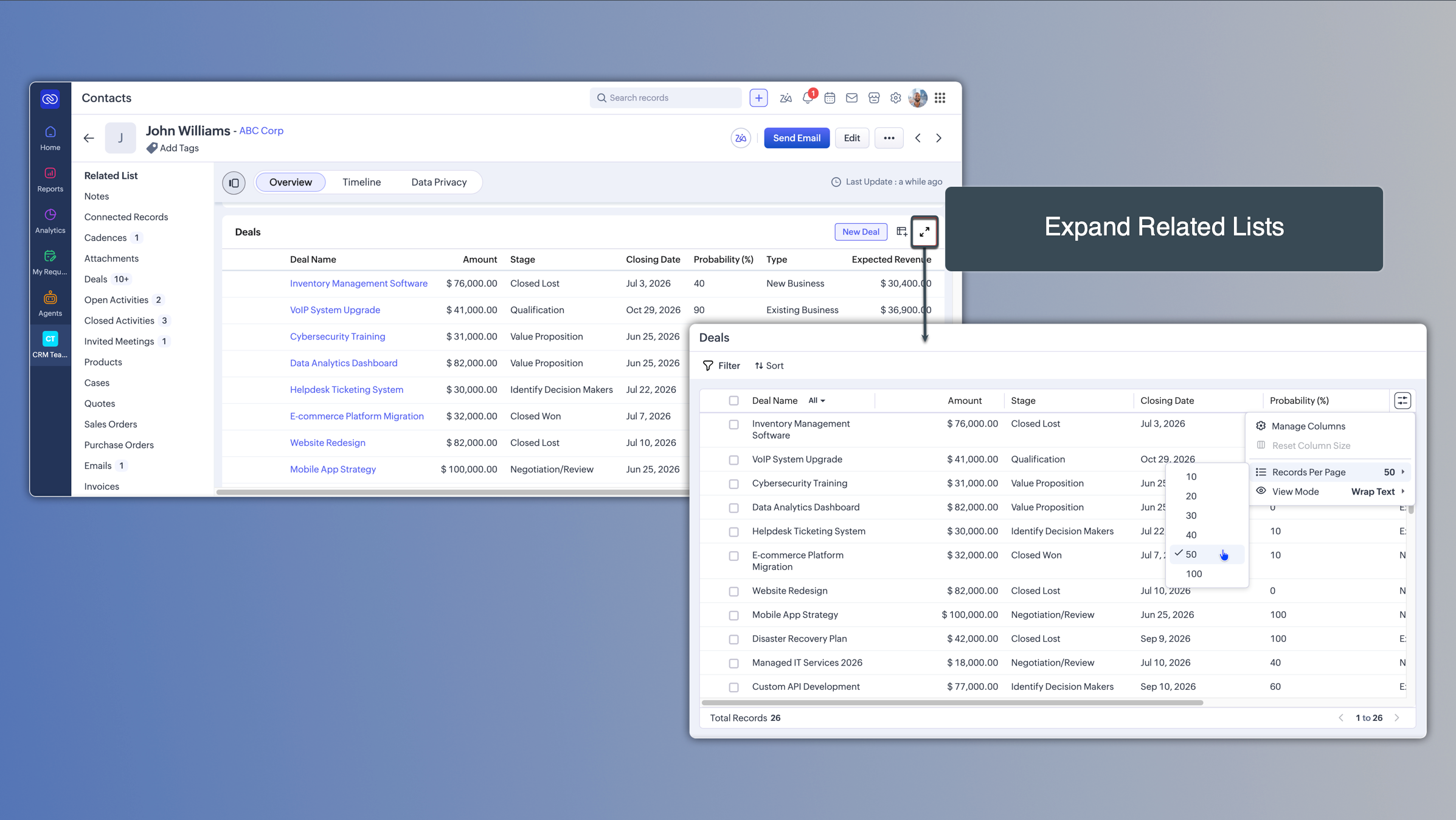
Related lists are one of the most frequently used parts of Zoho CRM. They show the records connected to whatever you're currently viewing—contacts associated with an account, activities linked to a deal, products attached to a quote, and more.
Until now, related lists were surprisingly limited. Users could only view 10 records at a time. If you needed to work with a larger set of records, apply filters, or perform actions across multiple records, you usually had to leave the record and navigate to the module's list view.
The new Related List Expanded View removes that limitation.
With a single click, users can now expand supported related lists into a full-width workspace where they can view up to 100 records per page, apply filters, and perform bulk actions without leaving the record they're working on.
Why This Matters
This is one of those updates that may not generate a lot of headlines but will save users time every day.
Imagine you're reviewing a customer account with dozens of contacts and open activities. Instead of opening records one at a time or jumping between screens, you can filter the related records directly within the account and take action immediately.
For sales managers, operations teams, and customer service users, this means less navigation and faster access to information.
Mass Actions Without Leaving the Record
The biggest improvement may be the ability to perform bulk actions directly from the expanded view.
Users can select multiple related records and perform actions such as:
Send Email
Add Tags
Mass Update
Run Macros
Create Tasks
Change Owner
Add to Cadences
Mail Merge
Export Records
Delete Records
Custom buttons configured for the related list are also available in the expanded view.
Real-World Scenario
Imagine a sales manager reviewing an account with 50 open contacts tied to a recent acquisition.
Instead of opening each contact individually, they can expand the Contacts related list, filter for a specific region or status, select the relevant records, and assign them to a new account owner in a single action.
What previously took dozens of clicks can now be completed from a single screen.
Availability
This feature is available across supported modules and editions where related lists are available. Lookup-based related lists are supported, with the exception of multi-select lookup related lists.
4. Cadences Are Becoming More Intelligent
Zoho also announced useful improvements to Cadences this month.
Until now, follow-up steps in a Cadence were largely based on the response to the previous follow-up. That worked well for basic email engagement, but real sales follow-up is more nuanced than that.
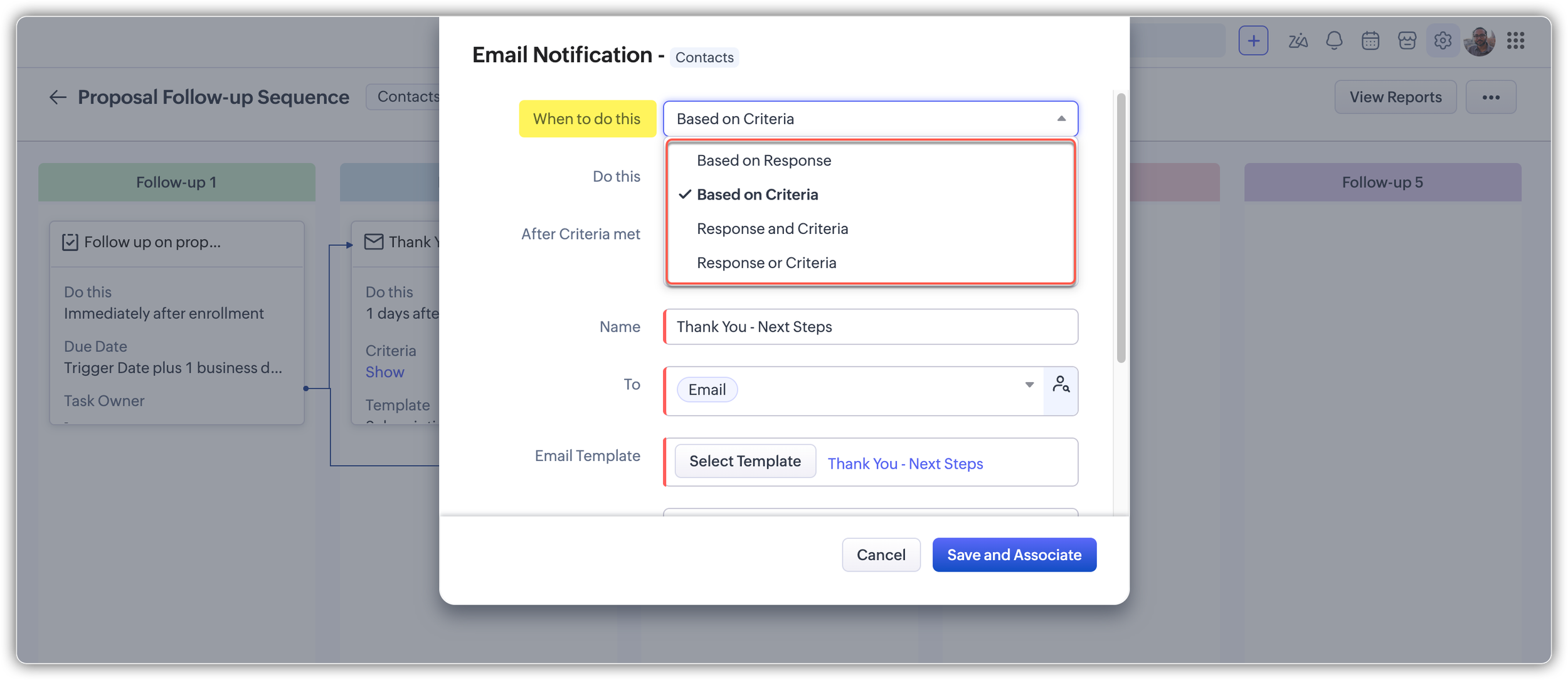
With this update, Zoho is adding criteria-based follow-ups for calls and tasks. That means the next step in a Cadence can now depend on details like call result, call duration, call purpose, task priority, due date, closed time, and custom fields.
Zoho also added new email response signals, including Not Opened, Not Replied, Not Clicked, and Opened and Not Replied.
This is useful because silence is also a signal.
Previously, many sales sequences were built around positive engagement: someone opened an email, clicked a link, or replied. But sales teams also need to respond differently when a lead goes quiet.
Real-world scenario
Imagine a sales rep completes a discovery call.
If the call result is marked as Interested and the call lasted more than ten minutes, the Cadence can automatically trigger the next step, such as sending a demo invitation or product overview.
If the call was short or the prospect was marked as Not Interested, the Cadence could branch differently or skip certain follow-ups.
The same idea applies to tasks. If a high-priority proposal follow-up task is completed, Zoho could trigger a thank-you email or next-step message. If the task is not completed on time, the Cadence could move the lead into a different follow-up path.
This makes Cadences more aligned with how sales teams actually work.
What to keep in mind
Criteria-based follow-ups apply from the second follow-up onward. The first follow-up still runs based on its scheduled timing.
Also, negative response triggers like Not Opened or Not Replied cannot be used with immediate actions. Zoho also prevents conflicting signals from being selected together. For example, if you choose Opened, then Not Opened becomes unavailable for that step.
These details matter because Cadences can get messy quickly if they are overbuilt. The goal should be to make follow-up smarter, not to create a maze of conditions that no one can maintain.
5. Dashboard Enhancements Make Reporting More Useful
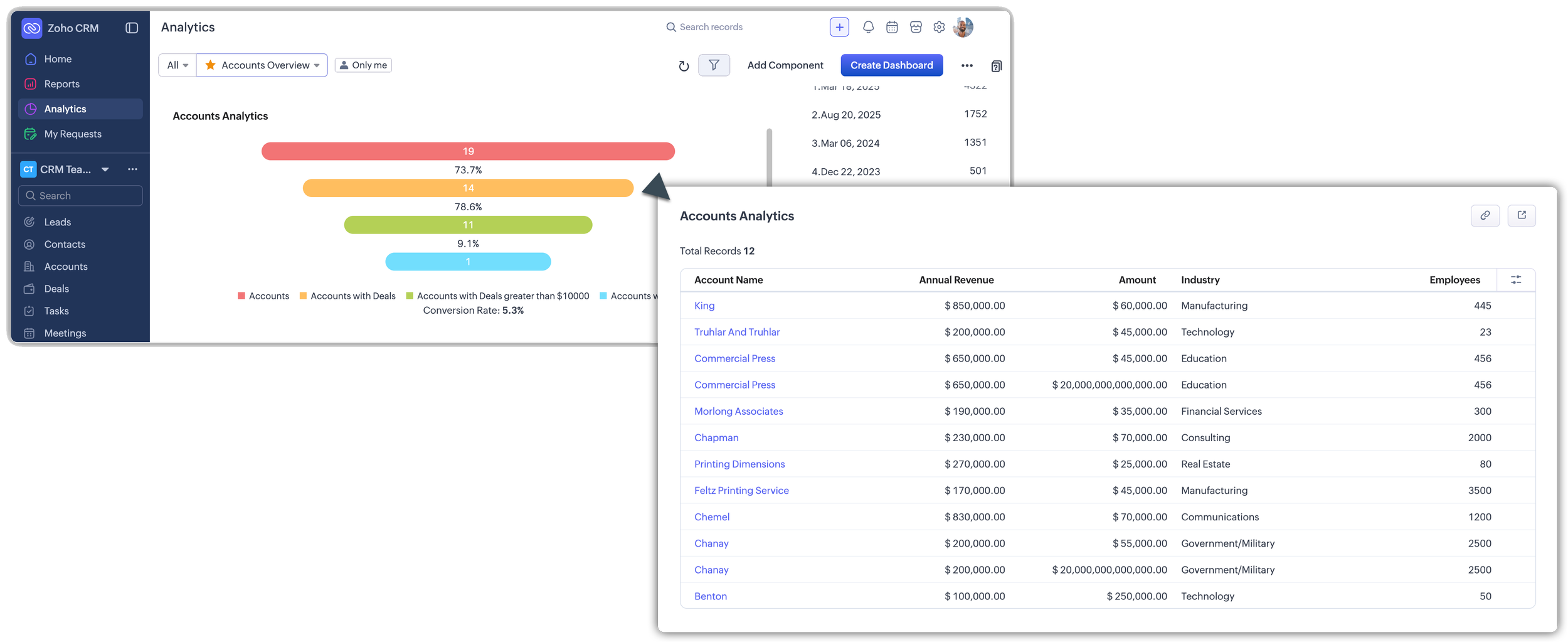
The most useful improvement is drill-down support for Funnel components.
Previously, funnel charts could show stage values, but users could not click into a stage to see the records behind that number. With the new drill-down support, users can click on a stage in the Funnel component and open the underlying records.
That makes funnel dashboards much more actionable.
Real-world scenario
A sales leader is reviewing the pipeline dashboard and notices a major drop-off between Proposal Sent and Negotiation.
Instead of leaving the dashboard, opening a separate report, and filtering manually, they can click directly into that funnel stage and review the records behind the number.
That is a practical improvement because dashboards should not just show what is happening. They should help users investigate why it is happening.
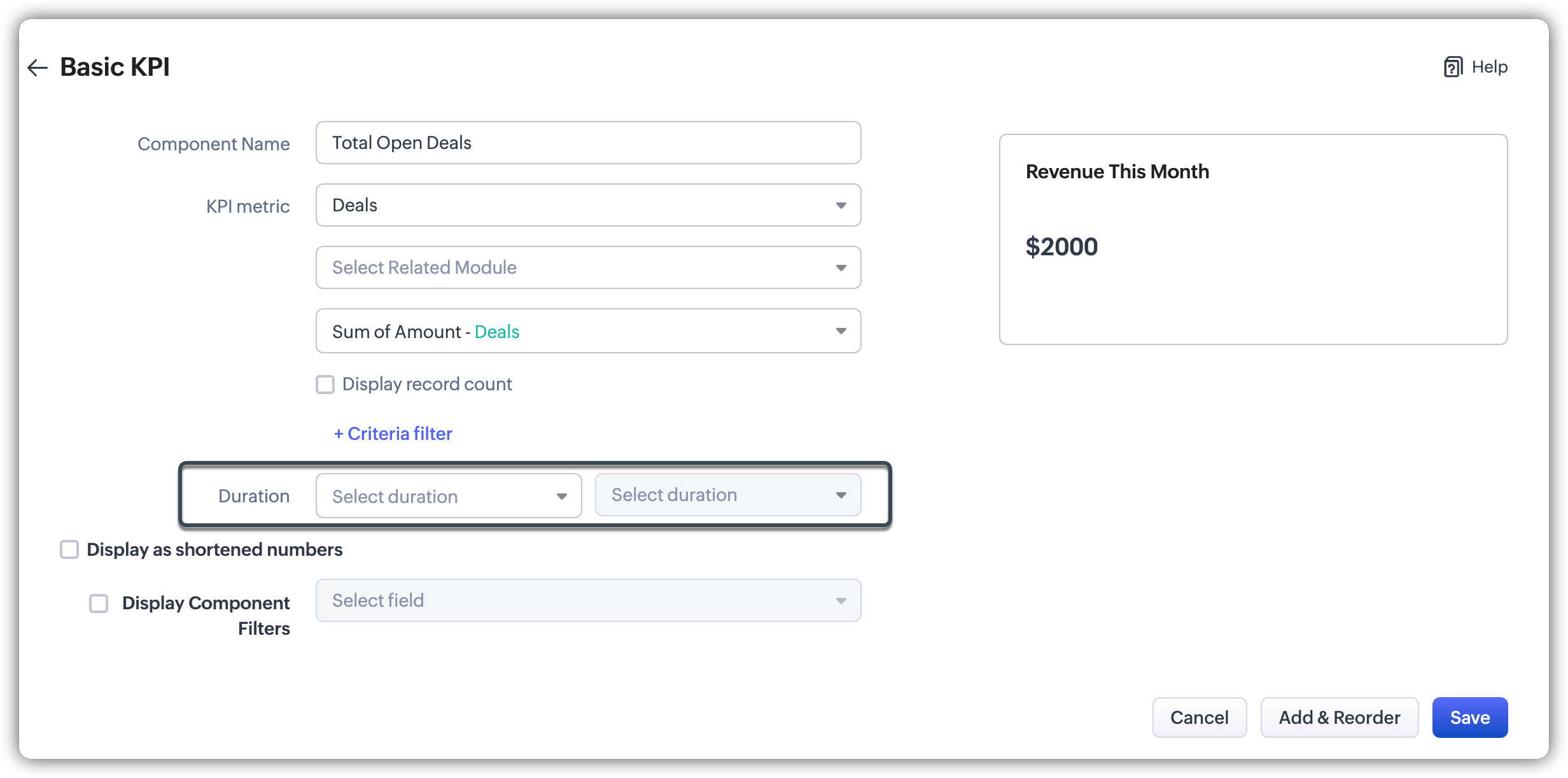
Zoho also added more flexibility around dashboard duration settings. Some components that previously required a duration can now be created across the full dataset if no date range is needed. This is useful for metrics that are not meant to be time-bound.
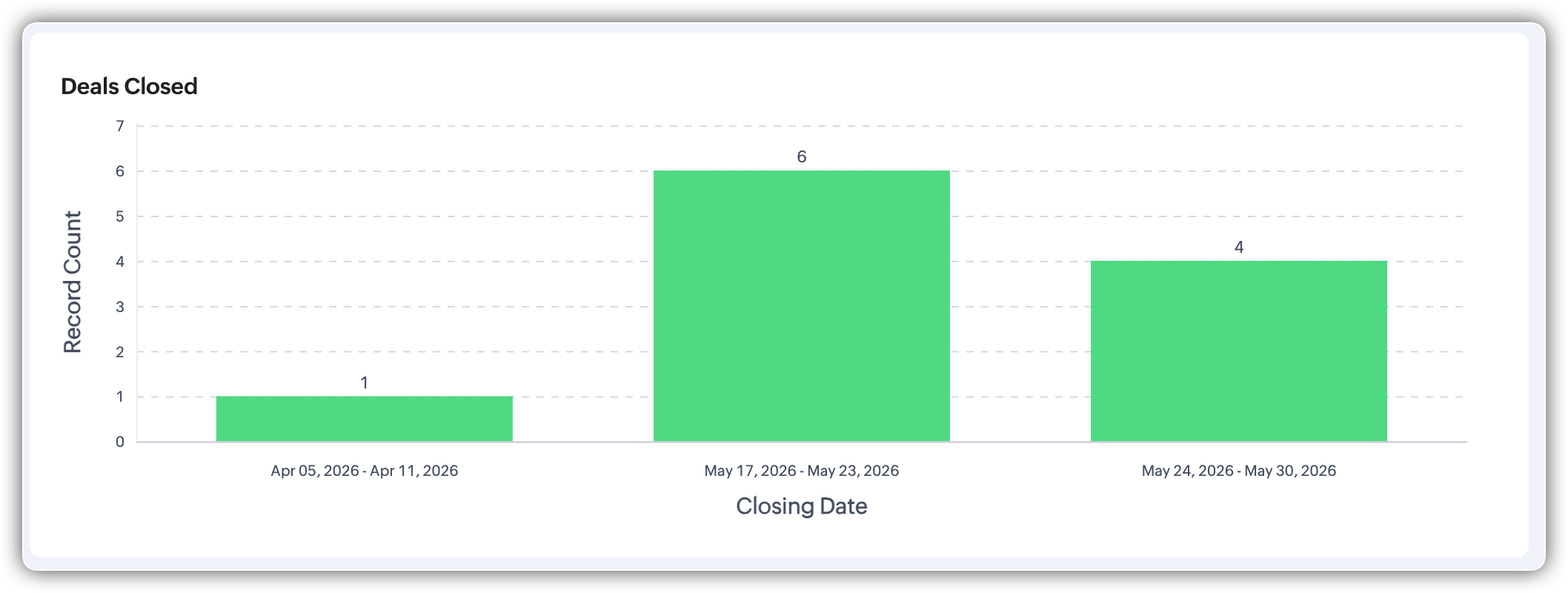
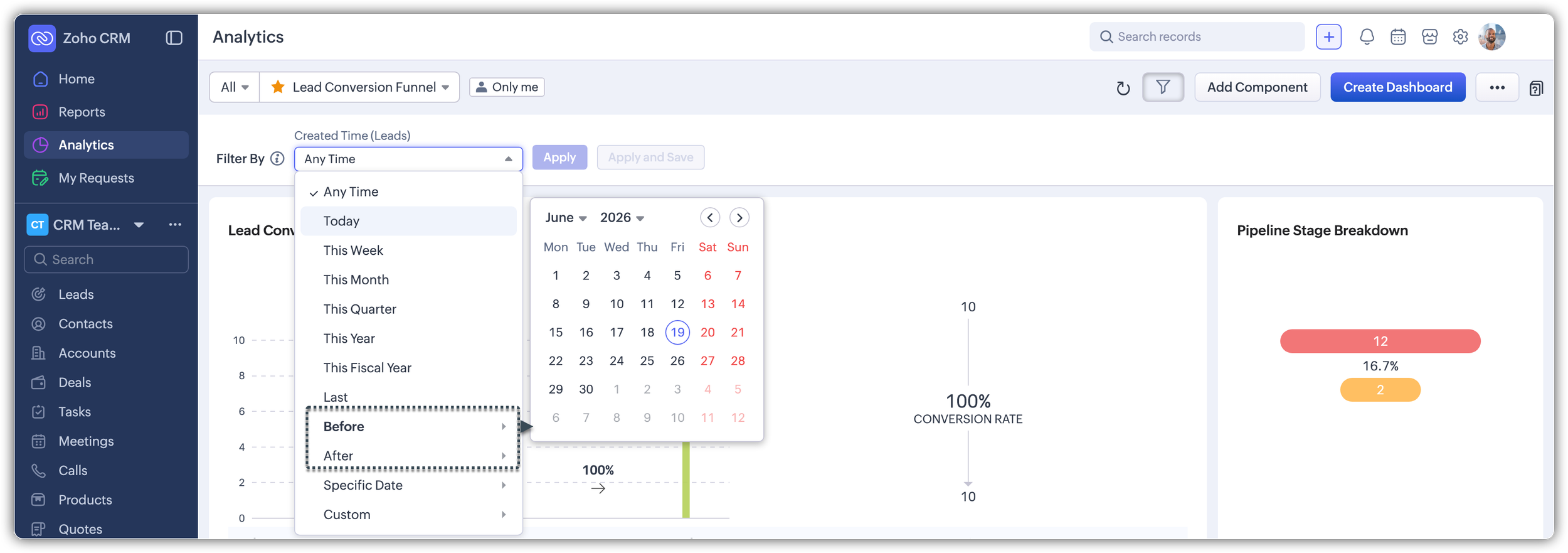
Date filters also now support Before and After operators, which makes it easier to filter records around a specific milestone without building a full date range. And weekly groupings are now displayed as date ranges instead of week numbers, making charts easier to interpret.
These are not flashy changes, but they make dashboards easier to use and understand.
6. Cookie Consent Management for Webforms
The final update worth noting is Cookie Consent Management for Zoho CRM webforms.
Webforms are commonly used to collect leads from a website and create records in Zoho CRM. These forms can use cookies to track analytics data, such as visits and submissions. But privacy regulations such as GDPR and other global data protection rules require businesses to obtain consent before using certain types of cookies.
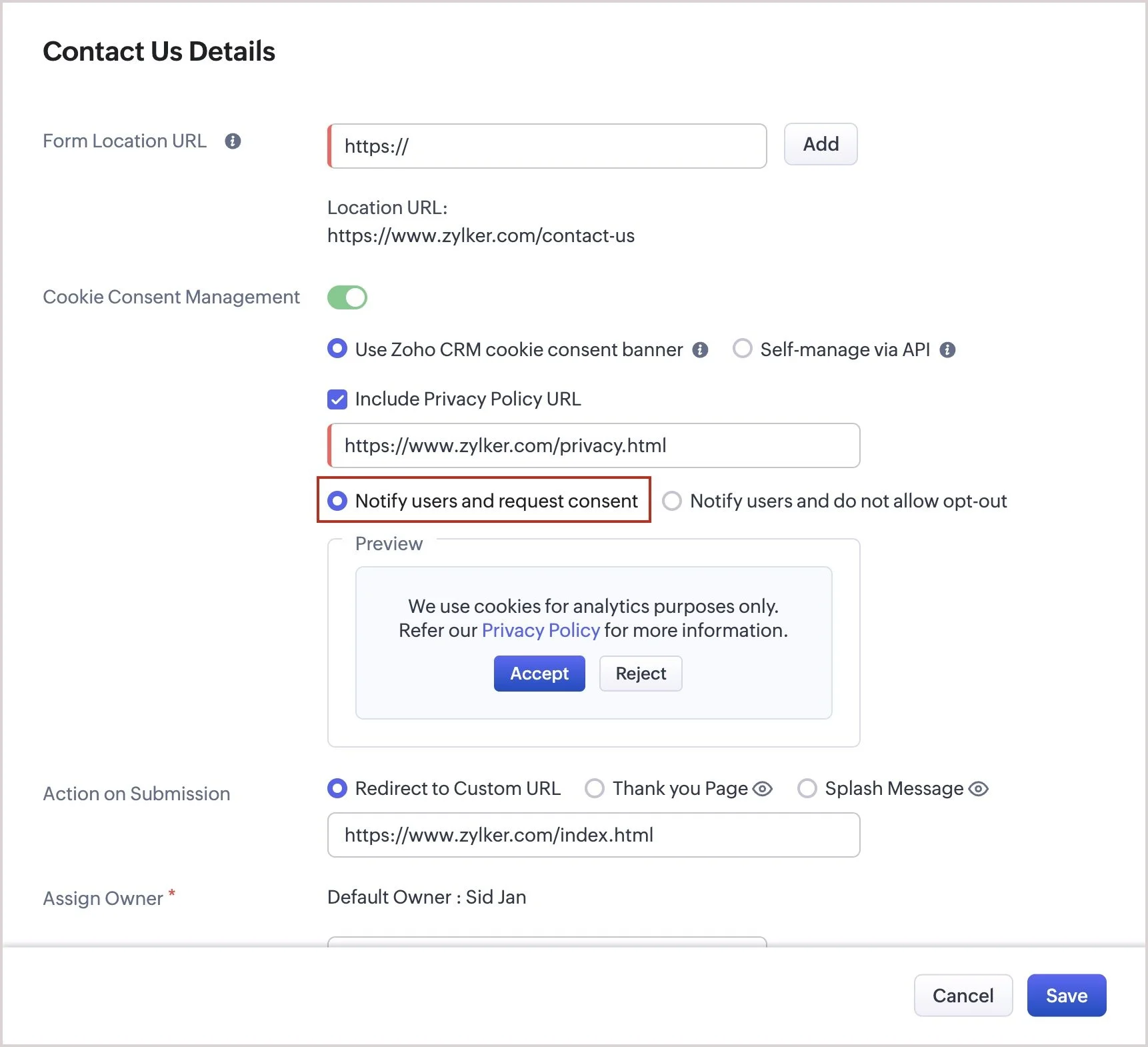
Zoho’s new Cookie Consent Management gives visitors the ability to opt in or opt out of cookie tracking.
This can be handled through a cookie consent banner on the form or through Zoho’s cookie APIs if your website already uses its own cookie consent system.
Real-world scenario
A company uses Zoho CRM webforms on its website to collect demo requests.
If that company serves visitors in regions with stricter cookie consent requirements, it needs a way to disclose cookie usage and allow visitors to make a choice. With this update, Zoho CRM webforms can better support that process directly.
This update will not be relevant to every CRM user, but it is important for companies that rely on webforms for lead capture.
If your website is already using a separate cookie banner, the API option may be the better fit. If you do not already have a consent process in place, Zoho’s built-in banner may be the simpler option.
Either way, this is worth reviewing if webforms are part of your lead generation process.
Final Thoughts
The most important Zoho CRM updates this month are not just about adding new features. They are about making CRM systems easier to manage, safer to use, and more aligned with how teams actually work.
Field Masking gives admins better control over sensitive data. Layout Rules give admins more flexibility to create cleaner, role-based user experiences. Cadence improvements make sales follow-up more responsive to real activity. Dashboard enhancements make reporting more actionable. Cookie Consent Management helps webforms better support privacy requirements.
The biggest takeaway is this: Zoho is continuing to invest in tools that help businesses improve structure, visibility, security, and adoption.
That matters because most CRM problems are not caused by a lack of features. They are caused by unclear processes, poor data controls, inconsistent user experiences, and systems that do not reflect how the business actually operates.
Two of the most significant updates, Field Masking and enhanced Layout Rules, are currently available for Zoho partner accounts and are expected to be released to customers through early access soon. If you are planning CRM improvements for the second half of the year, these are two features worth watching closely.
If your CRM already feels messy, inconsistent, or difficult for your team to use, these updates may help. But they will work best when they are part of a clear CRM strategy.
Before turning on new features, take time to ask the practical questions:
What information should each team see?
Where are users getting stuck?
Which fields need protection?
Which processes need better structure?
Which reports need to become more actionable?
That is where the real value is.
Not just knowing what Zoho released, but knowing how to use it in a way that makes your CRM clearer, safer, and easier for your team to manage.
Not sure which of these updates make sense for your CRM?
New features are only valuable when they support your processes, improve adoption, and help your team work more efficiently. Before implementing changes, it's important to understand how they fit into your existing CRM structure and business goals.
A CRM Review can help identify opportunities to improve security, usability, reporting, and automation while ensuring your Zoho CRM continues to support the way your team actually works.
Ready to get a clearer picture of what's working and what isn't? Contact us to schedule a CRM Review.